
Share your child's achievements
When your child does something to be proud of, TimesHero can make a picture card of it. You choose whether to share it with family and friends, and where. Nothing is ever posted for you.
What you can share
Section titled “What you can share”A card can be made when your child:
- earns the crown for a times table
- reaches a new step of Mastery in a times table (the card says, for example, Mastery step 3 of 5)
- beats their own best time in GridSprint (a first time in a table does not make a card)
- gets every answer right in a round of 10 or more questions (a perfect round)
- opens a Silver chest or a Gold chest
- sees their hero grow up into a new form for the first time
- wins a live battle against a friend
A finished game makes one card at most, the most special one it earned. A battle card is made only when your child wins against a friend. It is not made for a loss, a draw, a battle against the computer, or a battle with a guest who joined from a link.
Only a parent shares
Section titled “Only a parent shares”- A child never shares. The buttons for sharing sit in the parent area, or ask for your parent PIN first.
- When your child earns a card on a linked tablet, the screen says Saved for a parent to share. The card reaches your parent phone the next time the tablet syncs.
- Sharing is free for every family. You do not need the Lifetime Pass.
Share a card from the Parent Dashboard
Section titled “Share a card from the Parent Dashboard”- Open the Parent Dashboard on your parent phone.
- Under Your children, a small number on a child’s tile shows how many cards are waiting. If you have more than one child, tap a tile to choose that child.
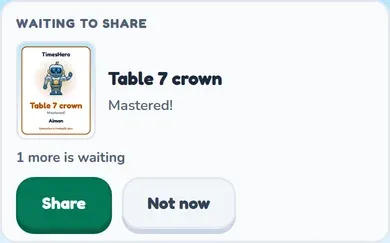
- Under the child’s name, the Waiting to share card shows the newest one.
- Tap Share. A preview of the card opens, with the message that will go with it.
- In the preview, tap Share again, then choose where to send it, for example a chat or a social app. Your phone’s own share menu opens, with the apps you can send to.
The preview looks like this:
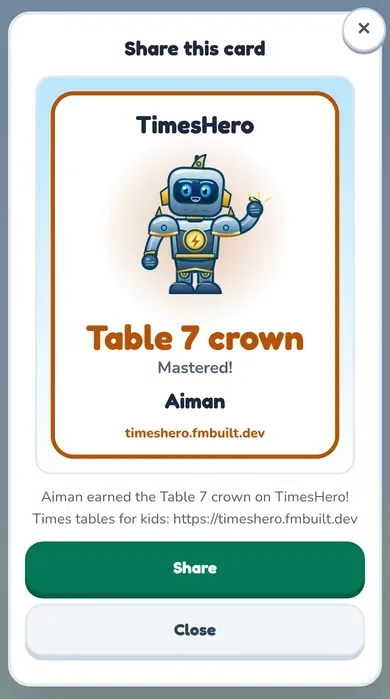
- The message shows as plain text under the card. You can change it in the share menu if the app you choose lets you.
- If you close the share menu without sending, you see Not shared. It is still waiting. The card stays on the list.
- If your phone cannot share a picture from TimesHero, the preview shows Save picture instead. Tap it to keep the card in your phone, then post it from your photos. The card then leaves the list, even if you cancel the save.
- If Sharing did not open. You can save the picture instead. appears, tap Save picture.
- Once a card is shared, or you tap Not now, it leaves the list and does not come back.
- If there is more than one card, the list says how many more are waiting.
Share now on your own phone
Section titled “Share now on your own phone”When your child plays on your parent phone and earns a card, a Share now button appears at the bottom of the screen. Tap it, enter your parent PIN, and the preview opens. The phone does not remember the PIN for sharing, so it asks every time. You do not have to use it: if you close the preview, the card keeps waiting on the Dashboard.
What is on the card
Section titled “What is on the card”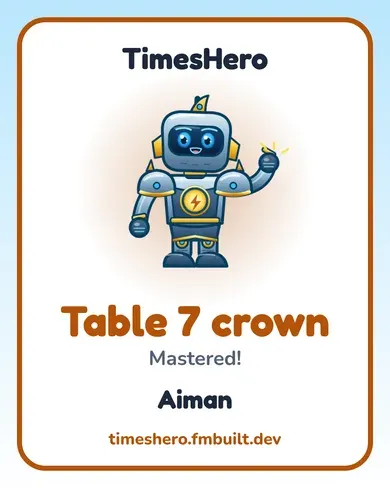
The card shows your child’s nickname, their hero and a short title, such as Table 7 crown or Silver chest opened. A battle card shows only your child’s own score.
The card never shows:
- a name your child typed for their hero
- your child’s progress details, such as their times or which tables are weak. A card shows only what is written on it, such as the table, the number of answers, Stars or the score.
- the other child in a battle
The message that goes with the card is plain. For example: Aiman earned the Table 7 crown on TimesHero! Times tables for kids: https://timeshero.fmbuilt.dev. The link has no tracking in it.
How long a card waits
Section titled “How long a card waits”- Each child can have 5 cards waiting. When a sixth arrives, the oldest one is deleted.
- A card is deleted 7 days after it happened, even if you did nothing with it.
Turn sharing off
Section titled “Turn sharing off”Sharing is on by default. To turn it off:
- On the Parent Dashboard, tap Settings.
- In Family and devices, find Sharing moments and clear the tick.
It takes effect straight away on this phone. Linked tablets get the change the next time they sync, and until then they may still save cards. On this phone, the Share buttons, the Waiting to share card and the numbers on the tiles disappear, and new cards are not remembered. Cards that were already waiting are kept and come back if you turn sharing on again, unless 7 days have passed. Tap Reset to default to turn it back on.
Your privacy
Section titled “Your privacy”- The picture is made on your phone. We never receive it or a copy of it.
- It goes only to the app you choose in the share menu. What you post is then handled by that app under its own rules, and you are responsible for it.
- To bring a tablet’s card to your phone, a short note travels with your child’s progress. It holds only what happened and when, such as the kind of card, the table, the number or score, and whether it was shared. It has no name, no hero name and no picture, and it is deleted after 7 days.
- This note is only used for families with linked tablets. A backup file does not include these cards.
If something goes wrong
Section titled “If something goes wrong”- Nothing is waiting. Check that Sharing moments is ticked in Settings. A card is made only for the moments listed above. For a card from a linked tablet, tap Sync on the Parent Dashboard to bring it over. Sync shows when you have the Lifetime Pass, which linked tablets need.
- The preview says it could not be made. You see The card could not be made on this phone. Please try again later. Tap Close and try again in a little while.
- Share does not open. Use Save picture instead.
- Still stuck? See If something goes wrong or Contact us.