Save a backup and move to a new phone
TimesHero does not use accounts. Your children’s progress lives on the phone where they play. We cannot see it and we cannot restore it for you.
A backup file is the only way to move your children’s progress to a new phone. Save one now, and again from time to time.
Save a backup
Section titled “Save a backup”- Open the Parent Dashboard and type your PIN.
- Tap Settings.
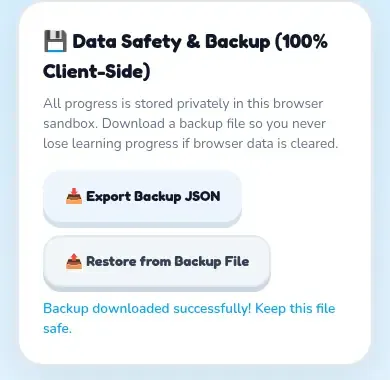
- Scroll to Data Safety & Backup.
- Tap Export Backup JSON.
- You see Backup downloaded successfully! Keep this file safe.
- Move the file somewhere safe. Where the phone puts it depends on the phone. Look in your Downloads or Files app.
The Backup Reminder
Section titled “The Backup Reminder”About once a month, the Parent Dashboard shows a box that says Time to save a backup.
- Tap Save backup to save the file in one tap. It is the same file as the one from Settings.
- Tap Not now and it asks again in about a month.
- The first reminder comes 7 days after you set up.
- It only shows on the parent phone, never on a child’s tablet.
Move to a new phone
Section titled “Move to a new phone”- Install TimesHero on the new phone. See Getting started.
- Open it, tap Set Up Family Account and finish the quick setup. You need this to reach Settings.
- Get your backup file onto the new phone.
- Open the Parent Dashboard, then Settings.
- Tap Restore from Backup File and choose your file.
- TimesHero asks: Importing this backup will replace current profiles and learning progress on this device. Continue? Tap to continue.
- Type the PIN when asked.
Your children’s profiles and progress come back. Your pass comes back too, because the key is in the file. When the phone is online, TimesHero checks the pass straight away.
Good to know
Section titled “Good to know”- A restore replaces what is on the phone. The temporary profile you made in step 2 is replaced.
- A file saved by a newer version of TimesHero cannot be restored on an older one. If you see This backup was made by a newer version of TimesHero. Update the app and try again., update the app first.
- Clearing the browser’s data for TimesHero, or removing the app, deletes what is on that phone. A backup protects you from this too.
- If you lose a phone and have no backup, the progress cannot be recovered. If a child’s tablet was linked, our service also keeps a copy of that tablet’s progress, which comes back when you link the tablet again. A backup is still the safe way.
- Wipe Everything & Start Fresh in Settings erases all profiles and progress on that phone. Only use it when you mean to.