Getting started
This page takes you from nothing to your child’s first game. It takes about five minutes. Do it on the phone you will keep as the parent phone.
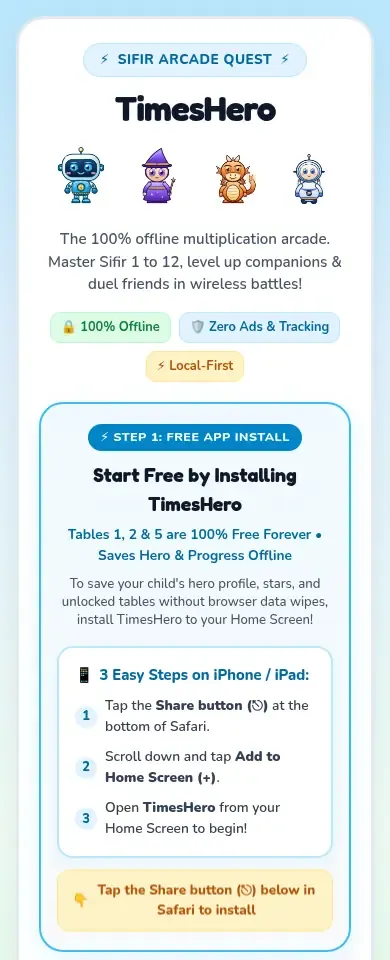
Install TimesHero on your home screen
Section titled “Install TimesHero on your home screen”TimesHero is installed from the web. You do not need an app store account. The address is timeshero.fmbuilt.dev.
iPhone or iPad
Section titled “iPhone or iPad”- Open the address in Safari.
- Tap the Share button at the bottom of the screen.
- Scroll down and tap Add to Home Screen.
- Open TimesHero from your home screen.
Android phone or tablet
Section titled “Android phone or tablet”- Open the address in your browser (Chrome works well).
- Tap Install TimesHero App on the page. If you do not see it, tap the browser menu (the three dots) and choose Install app or Add to Home screen.
- Open TimesHero from your home screen.
Set up your family
Section titled “Set up your family”Do this once, on the parent phone.
- Open TimesHero from your home screen.
- Tap Set Up Family Account. This is the parent phone.
- Type a 4-digit parent PIN. More about the PIN is below.
- Type your child’s first name, choose their school year and pick a hero.
- Tick the box that says you are the parent or guardian and agree to the Terms and Privacy Policy.
- Tap Start Training Now.
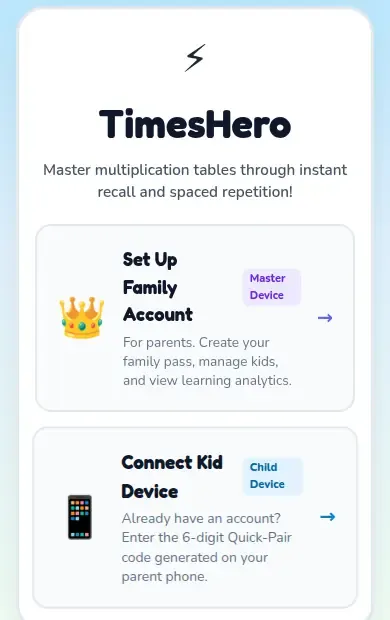
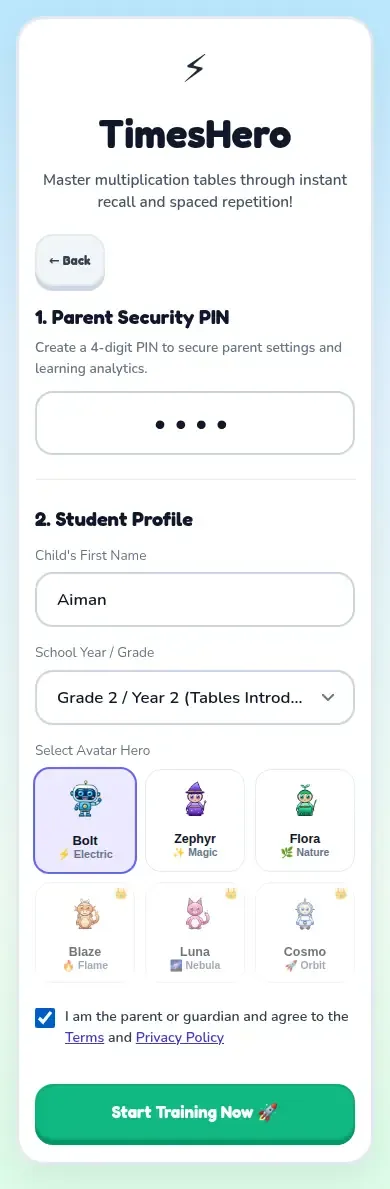
Your child’s picture now appears on the first screen. They can tap it to start playing on this phone. To add more children, see Add children and choose heroes.
The parent PIN
Section titled “The parent PIN”The parent PIN is a 4-digit number. It keeps children out of the parent area.
- You need it to open the Parent Dashboard (settings, backups, buying the pass) and to add a child.
- Choose a number your child cannot guess. Keep it somewhere safe.
- If someone types the wrong PIN 5 times, the PIN box locks for 30 seconds. More wrong tries mean longer waits, up to 15 minutes.
- The PIN keeps children out. It is not a bank vault.
- If you forget it, you do not lose anything. See Forgot your PIN.
The consent tick
Section titled “The consent tick”At setup you tick a box that says: I am the parent or guardian and agree to the Terms and Privacy Policy.
- It means you are the parent or guardian of the children who will use the app, and you agree to the Terms of Use and the Privacy Policy.
- The links open in a new tab, so nothing you typed is lost.
- The Start Training Now button stays off until you tick the box.
- For a plain summary, read Your family’s privacy.