Buy the pass
You buy the Lifetime Pass on your parent phone. It takes a few minutes. Payment is handled by Stripe, a payment company. TimesHero never sees your card number.
Before you buy
Section titled “Before you buy”- TimesHero is installed on your parent phone and set up. The buy button only appears in the installed app. See Getting started.
- You have internet.
- You have looked at Free plan or Lifetime Pass.
Buy the pass
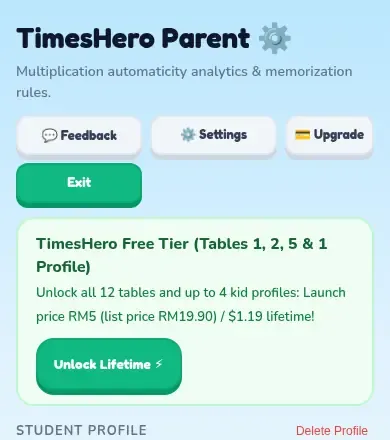
Section titled “Buy the pass”- On your parent phone, open TimesHero and open the Parent Dashboard. Type your PIN.
- Tap Upgrade, or the green Unlock Lifetime button.
- Check the price. Tap Unlock Lifetime with Stripe.
- On the payment page, pay with a card, Apple Pay or Google Pay. The price is in Malaysian ringgit. You may be asked to agree to the Terms.
- When you return to TimesHero, wait while it says Verifying your Stripe payment….
- The screen says TimesHero Lifetime Active! and shows your license key.
What you receive
Section titled “What you receive”- The pass is active on that phone straight away.
- A license key shows on the screen. It looks like HERO-XXXX-XXXX-XXXX. Tap Copy License Key to copy it.
- An email with the same key goes to the address you gave at checkout. The subject is Your TimesHero Family Lifetime Pass License Key.
- Stripe sends you a receipt.
If the key does not appear
Section titled “If the key does not appear”- Payment Processing: your payment is still clearing. Tap Check again after a moment. The key will also come by email.
- Your payment went through, but it could not be activated on this device: tap Retry. You can also tap Copy key, then open Settings and enter it by hand.
Enter a key by hand
Section titled “Enter a key by hand”- Open the Parent Dashboard, then Settings.
- In the Family Devices box, type your key where it says HERO-XXXX-XXXX-XXXX.
- Tap Activate Key.
Your child’s own tablet never needs the key. You link it with a code. See Link your child’s tablet.
If you lose the key, see Lost your key?.