Lost your key? Get it by email
If you cannot find your license key, you can have it sent to you again. It goes to the email address you used when you bought the pass.
Look on your parent phone first
Section titled “Look on your parent phone first”If the pass is already active on your parent phone, the key is there:
- Open the Parent Dashboard and type your PIN.
- Tap Lifetime Active.
- Your key is on the screen. Tap Copy License Key to copy it.
Ask for the key by email
Section titled “Ask for the key by email”- Open the Parent Dashboard and type your PIN.
- Tap Upgrade.
- Scroll to the bottom and tap Lost your key? Resend to Email.
- Type the email address you used to pay.
- Tap Send License Key.
- Check your inbox. Look in your spam folder too.
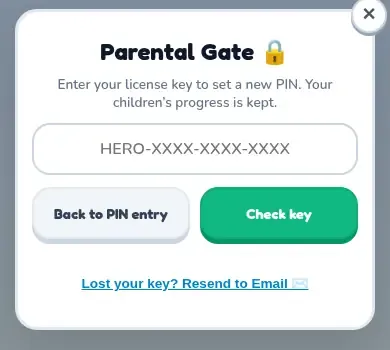
The same link is under the key box when you reset your PIN. See Forgot your PIN.
The message always looks the same
Section titled “The message always looks the same”After you tap Send License Key, TimesHero says:
If this email matches a purchase, we have sent you a message.
You see these words for every address. This is on purpose. It stops strangers from using the page to find out who bought the pass. So the message does not mean an email was sent.
What happens behind the scenes
Section titled “What happens behind the scenes”- The address bought an active pass: you get an email with your key.
- The pass for that address was refunded: you get a short, plain email that says Your TimesHero pass was refunded and tells you where to buy it again. It does not contain a key.
- That address never bought: nothing is sent.
Got the key?
Section titled “Got the key?”Open Settings, find Family Devices, type the key and tap Activate Key. See Buy the pass.