Link your child's own tablet
If your child has their own tablet or phone, you can link it to your parent phone with a 6-digit code. The tablet then opens straight to your child’s adventure. Their progress stays in step with your parent phone.
Before you start
Section titled “Before you start”- The Lifetime Pass is active on your parent phone.
- TimesHero is installed on the child’s tablet. Follow Getting started to install it. Do not set up a family on the tablet.
- Both devices have internet for the linking.
- Each child can have one tablet. A family can have up to 5 devices in all, and your parent phone counts as one.
Link the tablet
Section titled “Link the tablet”On the parent phone:
- Open the Parent Dashboard and type your PIN.
- Tap Settings.
- In the Family Devices box, find your child’s name and tap + Link Device for their name.
- A 6-digit code appears. Leave it on the screen.
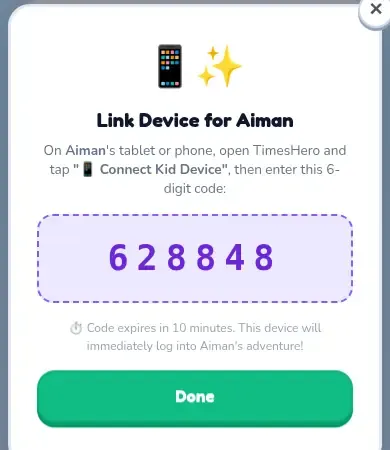
On the child’s tablet:
- Open TimesHero from the home screen.
- Tap Connect Kid Device.
- Type the 6-digit code.
- Tap Connect to Child Profile.
The tablet now belongs to that child. Their name, hero and progress are on it.
What the tablet can and cannot do
Section titled “What the tablet can and cannot do”- A linked tablet gets everything the pass includes: all 12 times tables and no daily limits.
- It shows only that one child’s adventure.
- It has no parent area, so a child on their own tablet cannot change settings or buy anything.
- It keeps progress in step with your parent phone when something happens, such as finishing a game. On the parent phone, you can tap Sync on the Parent Dashboard to check for new progress.
If the code does not work
Section titled “If the code does not work”- Check that you typed all 6 digits.
- The code may have run out. Go back to the parent phone and make a new one.
- If you type wrong codes several times, wait about 15 minutes and try again.
- If you see We couldn’t finish linking. Ask for a new code., make a new code and try again.
Remove a tablet
Section titled “Remove a tablet”In Settings, under Family Devices, each linked tablet has an Unlink Device button.
More help: If something goes wrong.